


Added Checkboxes for Song List Selection
SPW's song list has always supported Ctrl for single selection, Shift for range selection, and other shortcuts similar to Windows Explorer, but many users were unaware of this. Now, checkboxes are displayed by default to clearly indicate that multi-selection is supported.
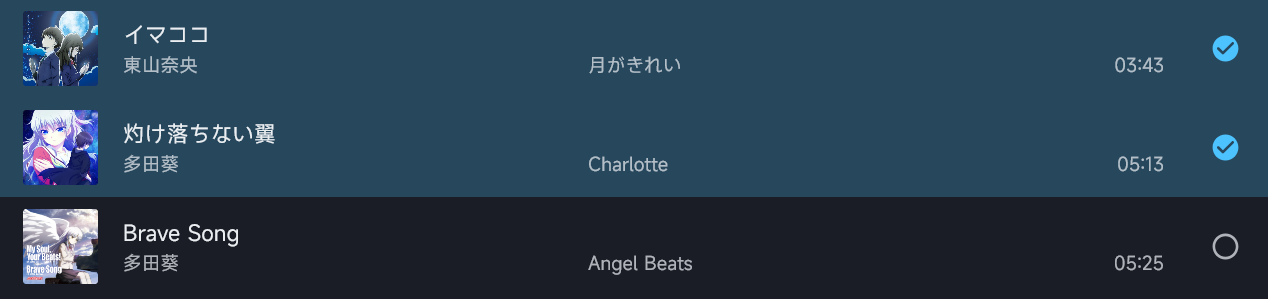
If you don't like this feature, you can disable it. The setting is located in "Appearance" -> "Track Item Appearance". You can also access it via the right-click context menu in the song list.

Remember Desktop Lyric Position
SPW can now remember the last adjusted position of the desktop lyrics, so it will be restored the next time you launch the application.
Other New Additions
Added the ability to delete modules
Added a confirmation dialog for deleting playlists
Optimizations and Changes
Optimized the clarity of album art on the album interface
Optimized the layout of the lyrics settings interface for a more logical categorization and added a preview for the blur effect on non-current lyrics
Optimized the rendering speed of the sunglow effect
Removed the -restartsteam parameter for the Steam version as it is no longer in use
Bug Fixes
Fixed an issue where the input format check for creating and editing playlists was incorrect
Fixed an issue where minimizing the window while maximized and then reopening it would cause it to become a floating window
Fixed an issue where parsing certain formats caused incorrect truncation of track titles
Fixed an issue where seeking in lyrics could not return to the initial, pre-playback state
Fixed an issue in WASAPI playback mode where pausing and then switching tracks could leave residual sound
Fixed several other minor issues
Steam Offline Usage Instructions
By default, Steam creates a shortcut on your desktop with the address steam://rungameid/3009140, which launches the application through Steam. If you need to use it offline, you must run the executable file directly. To do this, go to your Steam Library, right-click on "Salt Player for Windows", select "Manage" -> "Browse local files". In the folder that opens, you will find "Salt Player for Window.exe". You can create a shortcut to this file and place it on your desktop.
Changed files in this update